Stop App Tracking on iPhone and Android: 2026 Practical Guide
By Inspire Visual
Published
App tracking is used by data broker and marketing technology companies to collect, analyze, and sell detailed consumer data for targeted advertising. They record what you and everyone else is doing online to build comprehensive profiles of purchasing habits, demographics, and contact info, allowing brands to deliver personalized, cross-channel marketing.
Apple and Google share track and share your data unless you disable it. Fortunately it's not difficult to improve your online privacy settings right now whether you use an Android or iPhone.
If you’ve ever searched for something once and then felt like your phone started “following you around” with ads, you’re not imagining things. A lot of apps collect data about what you do so they can personalize ads, measure marketing results, or build a profile about your interests. That’s what most people mean when they say “app tracking.”
You don’t need to be a tech expert to reduce this. Both iPhone and Android have built-in settings that can dramatically limit tracking, especially the kind that connects your activity across multiple apps.
In this guide, we’ll walk through the most effective changes to stop app tracking on Android and how to stop app tracking on iPhone, using plain language and easy-to-follow steps. All it takes is about 5 minutes for you to have an almost anonymous online experience.
What “app tracking” means
“Tracking” can mean a few different things, and it helps to know what you’re turning off.
Cross-app tracking
Some tracking is cross-app. That’s when an app learns what you do in other apps (or on websites) and uses that data for targeted ads. This is the type people usually want to stop first, because it feels the most invasive.
Single-app tracking
Other tracking is inside one app, like analytics that help the developer understand crashes, loading times, or which features people use most. Turning off cross-app tracking won’t always stop that type of data collection (and sometimes it’s genuinely used to improve the app), but you can still limit it by controlling permissions like location, contacts, microphone, and background activity.
App tracking methods
When apps track you, they use various methods to keep taps on you.
Using a shared identifier (like an advertising ID) so advertisers recognize you across apps.
Sharing data about your activity (what you view, tap, buy, or search) with third parties.
Combining signals like location, device info, and app usage to guess who you are or what you like.
You can’t stop all data collection (apps still need some data to work), but you can stop a lot of cross-app tracking and reduce ad profiling with a few settings changes.
DO YOU LIKE THIS ARTICLE? Sign up to to be the first to receive more exciting articles. We don’t share your email, that’s a promise!
How to stop app tracking on Android
One of Google’s main business models is to collect data on its users, and there’s a lot of tracking going on.
Android privacy settings vary slightly depending on your phone brand (Pixel, Samsung, etc.), but the core controls are the same. The biggest tracking lever on Android is the Advertising ID, a device identifier used for ad targeting and measurement.
Control the Advertising ID (or delete it),
Turn off newer Ads Privacy features (topics/measurement), and
Restrict permissions that feed profiling.
1. Delete or reset your Advertising ID
Android’s Advertising ID is a key tracking mechanism for ad personalization and seen as privacy-invasive as it builds a profile of your interest, hobbies, reading-habits and online behavior.
On many Android versions, you can either delete the Advertising ID or reset it. While it doesn’t give you complete anonymity it’s better than having an identifying device Adverting ID.
How to delete or set Advertising ID:
Open Settings→Security & Privacy
Tap Privacy Controls
Tap Ads
Tap Delete advertising ID (or Reset advertising ID)
What’s the difference between delete or reset?
Delete: removes the ID so apps can’t access it and personalize ads to you.
Reset: creates a new ID (reduces continuity of profiling, but doesn’t remove the profiling over time).
Deleting or resetting the Advertising ID makes it harder for ad networks to connect your behavior over time. If you reset it, your phone basically starts using a fresh “ad ID” moving forward until the next time you reset or delete the ID.
Tip: If you can’t find “Ads” quickly, use the Settings search bar and type “Ads” or “Advertising”.
2. Remove location tracking
Android use information about wireless signals including Wi-Fi access points, cellular network towers, and GPS to track your location and build a profile of your location.
Additionally your device’s sensor data such as accelerometer and gyroscope is used for a more accurate position of you. This is shared with third-parties, so any company can buy your data for the benefit. You may want this disabled.
The steps to do so depends on your device. Here are the general steps:
Open Settings→Google
Tap Location Accuracy
Toggle Improve Location AccuracyOFF (or ON if you need it)
If you want a real privacy boost on Android, permissions are where it’s at. Permissions are one of the biggest sources of “hidden” tracking, especially Location.
Open Settings→Security & Privacy
Tap Privacy Controls
Choose a permission type (like Microphone)
Tap an app
Tap Don’t allow (or Ask every time, or Allow only while using if the app must have access to function)
4. Disable web & app activity
Even though you are not doing anything nefarious, why should Google (and others) be able to keep tabs on your searches, browser history and other app activities. While you are at it, why not disable your Timeline, YouTube history, My ad center and anything else you see on the Data & Privacy screen that you don’t want to share.
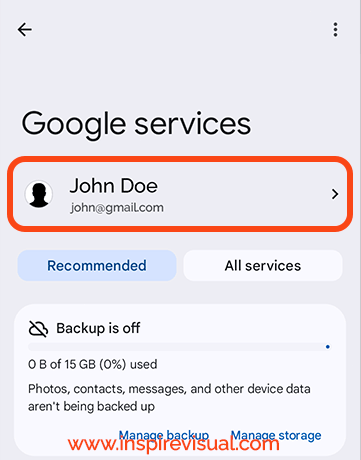
Open Settings→Google
Tap Your Google Account
Tap Manage your Google Account
Tap Data & Privacy
Tap Web & App Activity and Turn off Web & App Activity
Use Android Privacy Dashboard to spot “surprises”
Many Android versions include a privacy dashboard showing permission access over time (e.g., which app accessed your mic in the last 24 hours). If you notice something weird, revoke the permission.
DO YOU LIKE THIS ARTICLE? Sign up to to be the first to receive more exciting articles. We don’t share your email, that’s a promise!
How to stop app tracking on iPhone
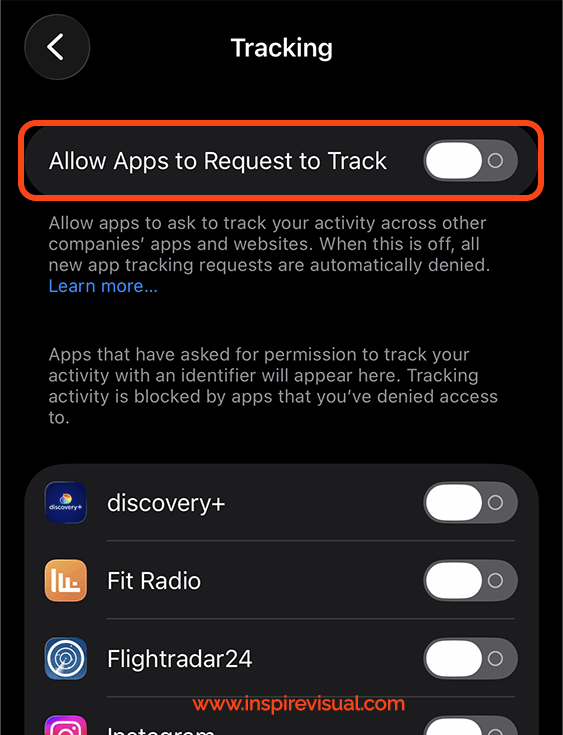
Apple’s main control here is App Tracking Transparency (ATT). It forces apps to ask permission before they track you across other companies’ apps and websites. You can deny tracking for individual apps, or block the prompt completely.
1. Turn off “Allow Apps to Request to Track”
Disabling Allow Apps to Request to Track is the easiest “set it and forget it” option.
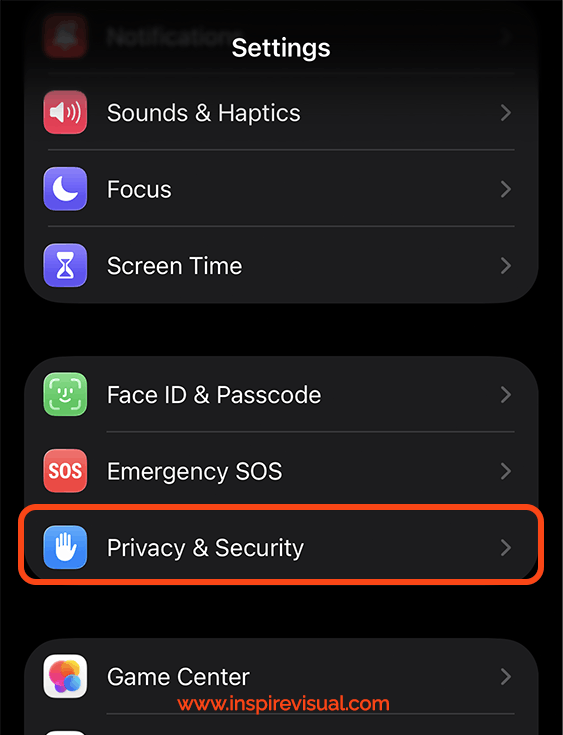
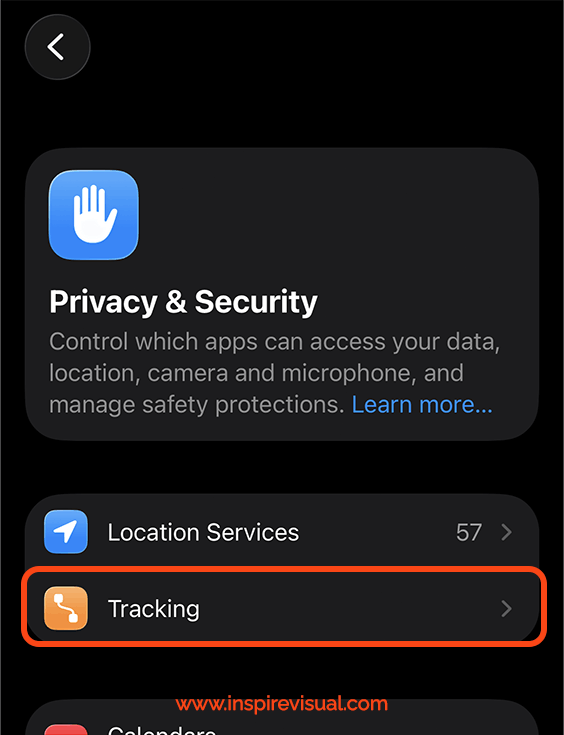
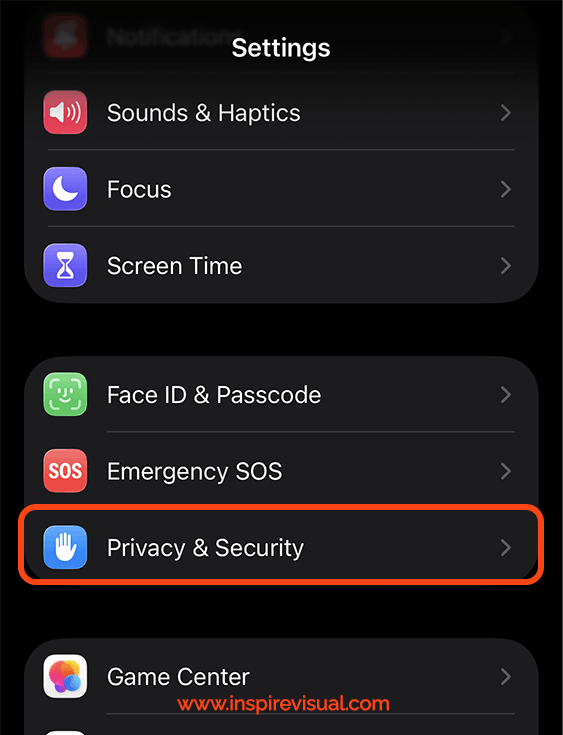
Go to Settings→Privacy & Security
Tap Tracking
Turn OFFAllow Apps to Request to Track
When you turn this off, apps can’t even ask for permission, so tracking requests are treated as denied without you having to worry about it.
2. Deny tracking for specific apps
If you don’t want to block requests globally, you can manage apps one by one.
Go to Settings → Privacy & Security
Tap Tracking
Under the app list, toggle apps OFF (deny) or ON (allow)
This is helpful if you genuinely want one app to have tracking permission (some users do for ad-supported apps), but want most apps blocked.
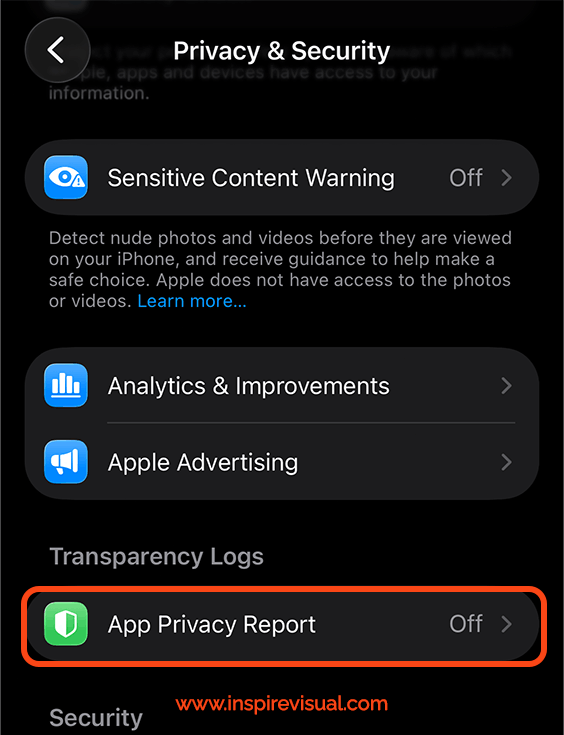
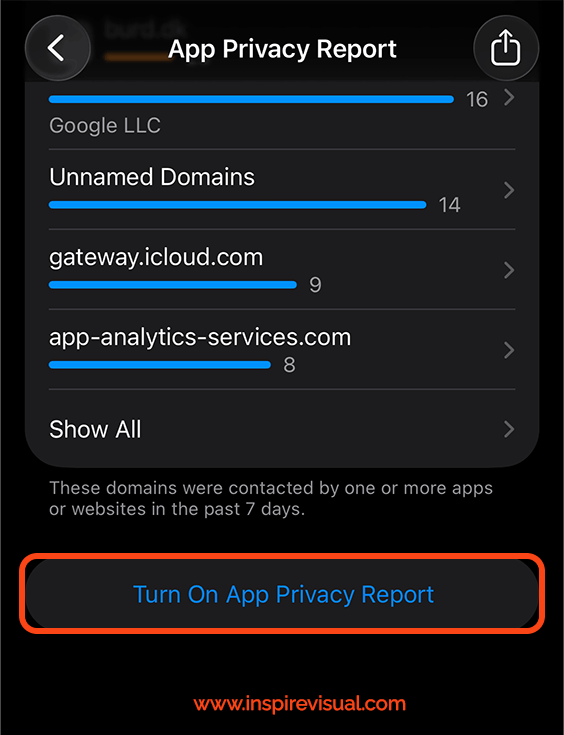
3. Turn on App Privacy Report to see what apps are actually doing
Sometimes an app says it respects privacy, but you want proof. Apple’s App Privacy Report shows which apps accessed permissions (like location, photos, microphone) and which network domains they contacted.
Open Settings→Privacy & Security
Scroll down to App Privacy Report
Tap Turn On App Privacy Report
Apple notes that it starts collecting only after you enable it, and the data is stored on your device.
4. Reduce “soft tracking”: tighten permissions that apps commonly use to profile you
Even with ATT off, apps can still learn a lot from permissions you grant. These settings reduce the inputs apps use to build profiles.
Location
Most apps really don’t need to know your every step or the chance to keep a history of where you’ve been.
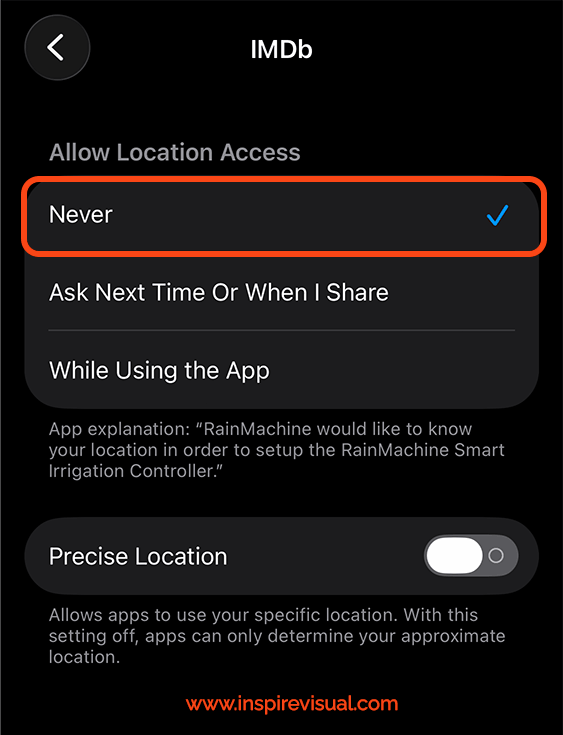
Go to Settings → Privacy & Security
Tap Location Services
Tap an app (like IMDb)
Choose Never (or While Using the App if the app needs it)
If you do want to give your location, but not with pinpoint precision, toggle Precise Location OFF. You may want Precise Location ON for ride-sharing apps, navigation apps etc.
Photos
When possible, choose either None or Limited Access rather than Full Access to your photo library. This limits how much of your photo library an app can scan.
Go to Settings → Apps
Tap an app (like eufy)
Tap Photos
Toggle None (or Limited Access if the app must have photo access to function)
Local Network & Bluetooth
These can be used legitimately (smart home devices, casting), but if an app doesn’t need it, deny it.
Go to Settings → Apps
Tap an app (like Spotify)
Toggle Bluetooth and Local Network OFF (deny) or ON (allow)
Quick “sanity checks” after you change tracking settings
If you still see hyper-personalized ads, it may be based on in-app behavior (inside that single app) rather than cross-app tracking.
Some apps may ask you to enable tracking again. Stick with your choice unless you have a specific reason to allow it.
Revisit the Tracking screen occasionally after installing new apps.
DO YOU LIKE THIS ARTICLE? Sign up to to be the first to receive more exciting articles. We don’t share your email, that’s a promise!
Conclusion
When you block tracking, you may still see ads, but they’ll often feel less “creepy” and less personalized. Some free apps may show more generic ads, and occasionally you’ll run into apps that nag you to enable tracking. You can safely ignore those prompts if privacy is your goal.
Be cautious with “free” apps and update frequently
Flashlights, scanners, wallpapers, and “cleaner” apps are common offenders. If an app is free to use, it often relies on aggressive data collection.
Updates often include privacy controls and security fixes. Staying current helps you keep control of permissions and reduces vulnerabilities that can be exploited.
Most importantly
You don’t need to disable everything to better your online privacy. Even just turning off iPhone tracking requests or resetting/deleting Android’s Advertising ID will cut off a major portion of cross-app tracking.
Need Help Publishing an Android or iOS App?
At Inspire Visual, we specialize in Android and iOS app development from start to finish. We hand-pick top-tier resources for every project and work exclusively with senior talent to ensure high-quality results. You can learn more about our app development phases and core strengths that set us above our competition.
If you’d like to see your Android or iOS app published, contact us today at 407.434.9171 or email us to discuss your app project. We’d love to help bring your vision to life!
About Inspire Visual
At Inspire Visual, we believe that compelling design, functionality and content help drive effective results. That’s why we work hard to provide innovative, visually inspiring and functionally sound solutions to address your marketing challenges and extend your brand’s reach.
We offer decades of experience helping brands worldwide with websites, mobile app development, email marketing, direct mail campaigns, brand identity design, UI/UX, graphic design, print design, tradeshow design and more. We feel privileged to be allowed into our clients’ businesses, and we strive to provide personal service and close collaboration throughout your project.
Call 407.434.9171 or email [email protected] to contact us, so we can meet you, learn more about your business and answer any questions you have. We’d love to connect with you!
App tracking is used by data broker and marketing technology companies to collect, analyze, and sell detailed consumer data for targeted advertising. They record what you and everyone else is doing online to build comprehensive profiles of purchasing habits, demographics, and contact info, allowing brands to deliver personalized, cross-channel marketing.
Apple and Google share track and share your data unless you disable it. Fortunately it's not difficult to improve your online privacy settings right now whether you use an Android or iPhone.
Many people today are struggling to make ends meet, with rising prices on everything from groceries to gas. It’s becoming harder to stretch each paycheck, and unexpected expenses can quickly throw off a budget. Saving money has never been more important, not just for long-term goals but for everyday stability and peace of mind.
Fortunately, you can save a lot of money with the help of these great deal-saving apps. We have listed the 5 best apps for Android and iOS that will help you get much further with less.
Are you ready to talk about your project?
Hello, I’m Angela, co-founder of Inspire Visual! Let’s have a chat about your project. Send an email or fill out the form to get started. Talk soon!